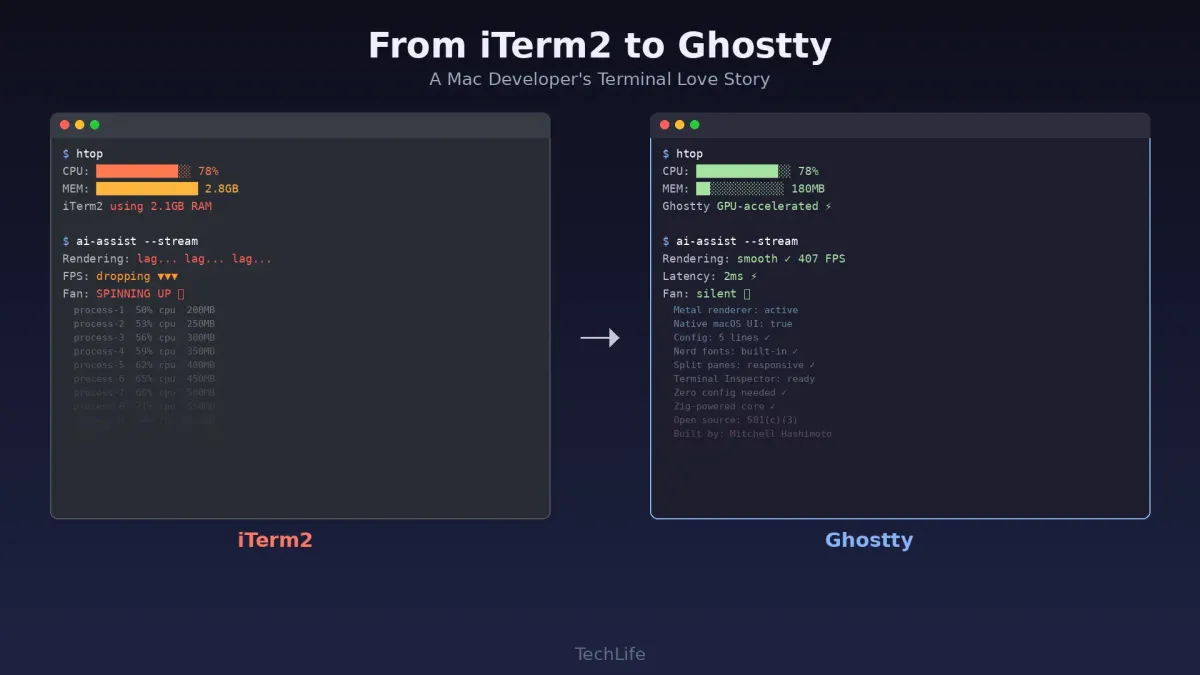
Why I finally traded iTerm2’s features for Ghostty’s GPU renderer
- Turker Senturk
- Software , Technology
- 09 Mar, 2026
- 15 min read
There’s a moment every developer remembers. Not the first time they wrote “Hello World” — that’s romanticized nonsense. I mean the first time you opened a real terminal, saw a blinking cursor staring back at you, and thought: “Okay, this is where things actually happen.” For me, that moment started on Linux, carried over to macOS, and eventually led me down a rabbit hole of terminal emulators that ended — after nearly a decade — with me finally breaking up with iTerm2.
Let me tell you the whole story.
The Linux Days: Where It All Began
My coding journey didn’t start on a shiny MacBook in a coffee shop. It started on a beat-up ThinkPad running Ubuntu, the kind of machine where the fan sounded like a small aircraft preparing for takeoff. Back then, the terminal wasn’t a choice — it was the interface. GNOME Terminal was my default, and I didn’t question it because I didn’t know any better. You open the terminal, you type commands, things happen. Simple as that.
I spent my early development days living inside that terminal. Installing packages with apt-get, breaking my display manager at least twice a month, learning vim the hard way (yes, I got stuck and couldn’t exit — we all did), and SSHing into random servers just because I could. The terminal was home. It was honest. No flashy UI to hide behind, just you and the command line.
And then came the switch.
Landing on macOS: The Culture Shock
When I eventually moved to macOS for work — because let’s face it, the ecosystem for development tools was becoming harder to ignore — the first thing I did was open Terminal.app. And I immediately felt like I’d traded my trusty old pickup truck for a golf cart. It worked, sure. But it felt limiting. No split panes. No proper color support out of the box. No profiles worth talking about. It felt like Apple designed it for people who occasionally need to type ls and then close the window forever.
I needed something better. Something that felt like home.
That’s when a friend — one of those developers who always seems to know the right tool before everyone else — said two words that would define the next eight years of my terminal life: “iTerm2.”
The iTerm2 Honeymoon
Oh man, where do I even start? Installing iTerm2 for the first time on macOS was like going from standard definition to 4K. Everything I missed from Linux was suddenly there, and then some.
Split panes? Check. I could carve up my screen like a pizza and have different sessions running side by side. Configurable color schemes? Absolutely. I spent an embarrassing amount of time browsing color themes before settling on Solarized Dark like every other developer on the planet. Search across terminal output? Native support for tmux integration? Hotkey windows that dropped down from the top of the screen like a Quake console? iTerm2 had it all.
The profile system was incredibly powerful. I had different profiles for different projects — one with larger fonts for presentations, one with specific environment variables for production servers, one that was basically just a nice green-on-black Matrix theme for when I wanted to feel like a hacker. iTerm2 wasn’t just a terminal; it became the cockpit of my entire development workflow.
I was in love. And for years, that love was justified.
iTerm2 was the gold standard on macOS. Whenever someone switched from Linux and asked me what terminal to use, I didn’t even hesitate. “iTerm2. Don’t think about it. Just install it.” I was basically an unpaid brand ambassador.
The Cracks Begin to Show
But here’s the thing about long-term relationships — sometimes the things you once overlooked slowly become impossible to ignore.
The first sign was the memory. iTerm2 has a well-documented appetite for RAM that would make Chrome jealous. With a handful of tabs open — maybe ten or fifteen across a couple of windows, which is totally normal when you’re juggling microservices, monitoring logs, running local servers, and SSHing into staging — I’d check Activity Monitor and see iTerm2 sitting at 1.5 GB. Sometimes 2 GB. On really bad days, after leaving it open overnight with some long-running processes, I’ve seen it climb past 3 GB. Users on GitLab have reported it hitting 7 GB. There are threads where people have seen it balloon to 11 GB on startup.
Part of this is the unlimited scrollback buffer — iTerm2 keeps everything in memory by default. But even after tweaking that setting, the memory usage was still noticeably higher than it had any right to be. And the longer you left it running, the worse it got. It felt like the app was slowly collecting memories… literally.
Then came the CPU spikes. Running any TUI application that refreshes frequently — htop, btop, even a simple watch command — would push iTerm2’s CPU usage to 15-20% on an Apple Silicon Mac. That’s not a rounding error. That’s a terminal emulator using more processing power than some actual applications.
The startup time started bothering me too. iTerm2 isn’t slow in an “I need to file a bug report” kind of way, but it’s got that slight hesitation when you launch it. A brief pause, a moment of loading, and then it’s ready. When you’re opening and closing terminals dozens of times a day, that pause adds up psychologically. It’s like a car that takes an extra two seconds to start every time — individually harmless, collectively maddening.
The AI Revolution Made Everything Worse
And then came 2023. And 2024. And the AI revolution didn’t just change how we write code — it changed how much our terminals need to handle.
Suddenly, my terminal sessions weren’t just about running npm start and tailing a few logs. I was running AI coding assistants that streamed massive amounts of text output. Language model responses flooding the terminal at high speed. Local inference tools spitting out tokens. Claude Code sessions generating, executing, and iterating on code autonomously. Vector database operations. Training scripts with verbose output. The sheer volume of text flowing through my terminal multiplied practically overnight.
And iTerm2 started to sweat.
The rendering lag became noticeable. When an AI assistant was streaming a long response — hundreds of lines of code, explanations, diffs — there was a perceptible delay between the output being generated and the screen catching up. The scrolling got choppy. The CPU usage climbed. And because AI workflows often involve multiple concurrent sessions (one for the AI tool, one for the running app, one for git operations, one monitoring system resources), the memory problem compounded.
My laptop’s fans would kick on. Not because of the AI tools themselves — those were running efficiently — but because iTerm2 was struggling to render the output fast enough. The terminal had become the bottleneck. Let that sink in: my terminal emulator was the slowest link in the chain.
I started looking around. Not actively searching for a replacement — more like casually glancing at the field, the way someone in a relationship might notice an attractive stranger at a coffee shop. I tried Alacritty briefly. Blazing fast, but it felt too minimal, too spartan. No tabs, no splits without tmux, and the configuration was all YAML — functional but not exactly friendly. I looked at Kitty. Powerful, certainly, but the configuration complexity felt like a whole new job.
And then I heard about Ghostty.
Enter Ghostty: The Terminal Built for Right Now
The name caught my attention first — Ghostty. Catchy, a bit playful, not your typical dry developer tool naming convention. But what really made me sit up was who built it: Mitchell Hashimoto, the co-founder of HashiCorp and the mind behind Terraform, Vagrant, Vault, and a bunch of other tools that basically defined modern infrastructure as code.
Hashimoto didn’t build Ghostty because he needed to start a company or chase a market. He built it because, after years of building CLI applications, he realized his understanding of how terminals actually work was — by his own admission — “muddy.” He wanted to learn. So he started writing a terminal emulator from scratch in Zig as a side project in 2021, and what began as a learning exercise evolved into something genuinely exceptional.
Ghostty 1.0 shipped in late December 2024, and by September 2025, version 1.2.0 landed with contributions from 149 people across over 2,600 commits. The project moved under Hack Club’s 501(c)(3) umbrella, signaling a commitment to keeping it free and open source for the long haul.
Here’s what makes Ghostty different — and why it finally pulled me away from iTerm2.
Why Ghostty Won Me Over
It’s Absurdly Fast
Ghostty uses GPU acceleration for rendering — Metal on macOS, OpenGL on Linux. This isn’t a gimmick. When you’re tailing a massive log file or watching an AI model stream thousands of tokens, the difference is immediately obvious. The text doesn’t stutter. The scrolling is butter-smooth. There’s no rendering lag, no catching up, no moments where the terminal freezes and then vomits a wall of text at you all at once.
In benchmarks, Ghostty has been measured at around 407 FPS in rendering tests with key-to-screen latency around 2ms. But benchmarks are benchmarks — what matters is how it feels. And Ghostty feels like the terminal equivalent of upgrading from a hard drive to an SSD. Everything is just… instant.
One practical test I love: run htop and compare CPU usage. In iTerm2, the terminal itself often uses more CPU displaying the htop output than htop uses generating it. In Ghostty, that ratio flips. The terminal gets out of the way and lets the actual tool do its thing.
It Feels Native Because It Is Native
This is the big philosophical difference. Most cross-platform terminal emulators use a single rendering framework everywhere — usually something like OpenGL or a custom renderer — which means the app never quite feels at home on any platform. Ghostty takes the opposite approach. On macOS, the GUI is written in Swift using AppKit and SwiftUI. On Linux, it’s written in Zig using the GTK4 C API. Both platforms share a core backend (libghostty, written in Zig), but the frontend is genuinely native.
What does this mean in practice? On macOS, Ghostty respects your system settings. It handles dark mode correctly. Window management behaves like every other macOS app. Keyboard shortcuts follow macOS conventions. It doesn’t feel like a Linux app wearing a Mac costume — it feels like a Mac app that happens to be a terminal. iTerm2 has always been macOS-only, so it had the native feel going for it too, but Ghostty manages to feel more native while also being cross-platform. That’s a neat trick.
Zero Configuration Required (But Infinitely Configurable)
One of the things that always slightly annoyed me about iTerm2 was the preferences window. Don’t get me wrong — it’s powerful. But it’s also a labyrinth. There are so many nested panels, tabs within tabs, checkboxes, and dropdown menus that finding a specific setting sometimes felt like navigating a bureaucratic maze. I once spent twenty minutes trying to find where to change the cursor blink rate.
Ghostty takes a radically different approach: there’s no GUI preferences panel at all. Configuration lives in a plain text file at ~/.config/ghostty/config, using simple key-value pairs. Want to change your font? Add font-family = "JetBrains Mono". Want to set a theme? Add theme = catppuccin-mocha. That’s it.
But here’s the real magic — you might not need to configure anything at all. Ghostty’s defaults are that good. It ships with Nerd Font support out of the box, so your Starship prompt and all those fancy glyphs just work. The default color scheme is pleasant. The font rendering is crisp. I installed Ghostty, opened it, and it was immediately usable. My entire configuration ended up being about five lines, and three of them are purely cosmetic.
Split Panes That Actually Work
iTerm2’s split panes were one of my favorite features, but Ghostty’s implementation is noticeably more responsive. Creating and resizing splits is snappier, and the pane management doesn’t add the same overhead. Combined with the tab overview feature — which gives you a bird’s-eye view of all your open tabs — it’s a workflow that feels modern and considered.
The Terminal Inspector
This is something genuinely new. Ghostty includes a Terminal Inspector — think Chrome DevTools, but for your terminal. It shows real-time debugging information: keystrokes, render timings, escape sequences, everything happening under the hood. Hashimoto was inspired by Firebug (remember that?), the Firefox plugin that completely transformed web development by making the browser’s internals visible and debuggable.
For most users, this is a curiosity. But for anyone who writes CLI tools, develops terminal applications, or just wants to understand why something isn’t rendering correctly, it’s invaluable.
The Migration: Easier Than Expected
If you’re thinking about making the switch, here’s the good news: migrating from iTerm2 to Ghostty is surprisingly painless.
Step 1: Install Ghostty. On macOS, download it from ghostty.org. It’s a standard .dmg install — drag to Applications, done.
Step 2: Set your font. If you use a specific coding font (and you should), add it to the config:
font-family = "Your Font Name"
font-size = 14
Step 3: Pick a theme. Ghostty ships with hundreds of built-in themes. Browse them and add your choice:
theme = your-preferred-themeStep 4: Handle SSH terminfo. This is the one gotcha. Ghostty uses a custom terminal type (xterm-ghostty), and remote servers might not recognize it. The simple fix is to add this to your config:
term = xterm-256colorThis tells SSH sessions to use a universally supported terminal type. It’s a one-time fix.
Step 5: Learn the new shortcuts. Most of Ghostty’s keyboard shortcuts follow standard macOS conventions, so the transition feels natural. Cmd+D for vertical split, Cmd+Shift+D for horizontal, Cmd+T for new tab — it’s intuitive if you’re coming from any macOS app.
That’s honestly it. The whole migration took me about fifteen minutes, and most of that was browsing themes.
What I Miss (And What I Don’t)
Let’s be fair — there are a few things iTerm2 does that Ghostty doesn’t, at least not yet.
I sometimes miss iTerm2’s GUI preferences panel, especially when I can’t remember the exact config key for a specific setting. Ghostty’s documentation is excellent, but there’s something to be said for being able to browse options visually.
iTerm2’s Python API is unique — you can script terminal behavior programmatically, which is powerful for automation. Ghostty doesn’t have an equivalent yet.
The Triggers feature in iTerm2 — which lets you set up automatic actions based on text patterns in the terminal output — is something I used occasionally and don’t have a direct replacement for.
But here’s what I don’t miss: I don’t miss the memory bloat. I don’t miss the rendering lag during AI coding sessions. I don’t miss the CPU spikes when running TUI applications. I don’t miss the startup hesitation. I don’t miss the preferences labyrinth. And I definitely don’t miss my laptop’s fans spinning up just because I had too many terminal tabs open.
The Bigger Picture
The reason I’m writing this isn’t just to say “hey, I switched terminals.” It’s because the AI revolution has fundamentally changed what we need from a terminal emulator. The tools we use every day — AI coding assistants, local inference engines, streaming model outputs, autonomous coding agents — are pushing more data through our terminals than ever before. A terminal that was perfectly fine in 2020 might genuinely be a bottleneck in 2026.
Ghostty represents a new generation of terminal emulators built with these modern workloads in mind. It’s fast because it uses your GPU. It’s efficient because it’s written in Zig, a systems language designed for performance. It’s native because it respects each platform’s conventions. And it’s sustainable because it’s open source under a nonprofit umbrella.
Mitchell Hashimoto built Ghostty because he wanted to understand how terminals work. What he ended up building is a terminal that understands how developers work — today, right now, in the age of AI-assisted everything.
If you’ve been on iTerm2 for years like I was, I get it. Change is hard, especially when your muscle memory is deeply wired. But give Ghostty a weekend. Install it, use it as your default for a few days, and see if you notice the difference. I’m betting you will.
Your terminal is the lens through which you see all your work. It’s time for a clearer one.
Useful Links:
Share :
Stay Ahead in Tech
Join thousands of developers and tech enthusiasts. Get our top stories delivered safely to your inbox every week.
No spam. Unsubscribe at any time.